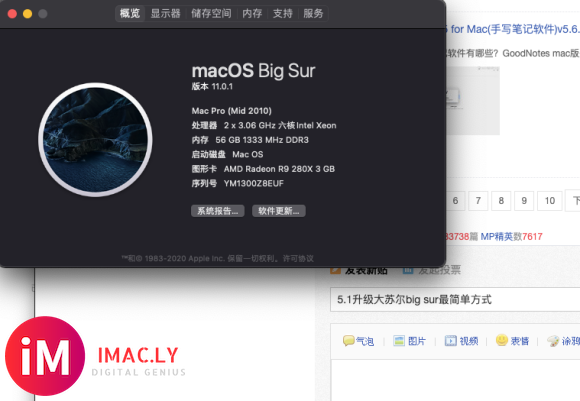
用github上面的补丁就行
有无U盘都可以,我直接用第二个硬盘做安装盘的。
上不去的 盘里自取
/s/1MuLVCPLQQ_BVo9feeK8_6A 提取码: 6grh
没啥教程,直接下一步下一步下一步就行
然后重启 按住option 选择安装盘就行,直接安装,不用抹盘,装到系统盘就是升级了。
非要看教程,最下面贴上英文版,我也看不懂

安装到设置完进入桌面,48分钟。
How do I use Patched Sur?
1. Download Patched Sur, (.dmg not .zip), from the GitHub releases page.
2. Open the dmg file, right click on the app, and click open.
3. The first three prompts are just information explaining the following:
A quick intro into Patched Sur
How much functionality you will get out of macOS once the patching process is complete
How the patcher works, and what it does to your Mac
4. Next, you can choose what update track you would like to update with. Release is the default (however, it is currently unavailable, since macOS Big Sur is not released yet), but you can also choose Public Beta and Developer Beta.
5. Then, you can select whether you want to update macOS from Catalina to Big Sur (or Big Sur to Big Sur if you are switching from a different patcher) or do a clean install of Big Sur (currently unavailable).
6. After that, your Mac will start downloading @barrykn's micropatcher for kexts and a couple other resources.
7. Now, you will be able to choose what version of macOS to download. By default it will show the latest version based on your selected release track, but if you click View Other Versions, you can choose a different one or your own.
8. Once the download is finished, you need to enter your password, so Patched Sur can install the package. Then, after you select the USB drive you want to use to install macOS, the patcher can copy the installer onto the USB.
9. Finally, the USB gets patched and you are ready to start installation!
10. Reboot your computer, but immediately start holding down the Option/Alt key as soon as your Mac turns on.
11. Select the yellow EFI Boot drive, (if there are multiple unplug and replug in your drive and select the EFI Boot that disappeared and reappeared). Then, your Mac will quickly turn off, so turn it back on while, again, holding down Option/Alt. Then, select Install macOS Big Sur Beta.
12. Once the installer boots, select reinstall macOS and agree to the Terms and Conditions. Then, select the drive you want to install Big Sur onto, (it should be the same drive you ran the patcher on).
13. After the installer is done, (it will take a while and appear to get stuck), log in to your Mac and open Patched Sur from your Applications folder or LaunchPad.
14. Open the Patch Kexts section and enter your password. Then, you should be able to reboot and enjoy Big Sur! |

























































 微信扫一扫
微信扫一扫